What you need
- Anki on a computer, with the deck you want to play.
- A Google account. It links the game and the Study app.
- The Cathartic app on your phone (how to get it).
The mechanism is simple: the Study app on this website puts your decks into your Google Drive (hidden app data, not your normal Drive files), and the game syncs from there. Everything you review in the game goes back to Drive, and from there into the Study app and, if you want, into Anki.
1. In the game: sign in and turn on Drive sync
- Open Cathartic and tap Log In, then Login with Google. Use the Google account you will also use in the Study app.
- Open Settings → Google Drive Sync and tap Enable. Google asks you to allow Cathartic to store app data in your Drive.
- The status reads Connected when it worked. Auto-sync keeps the phone up to date on its own; Sync Now does it immediately.
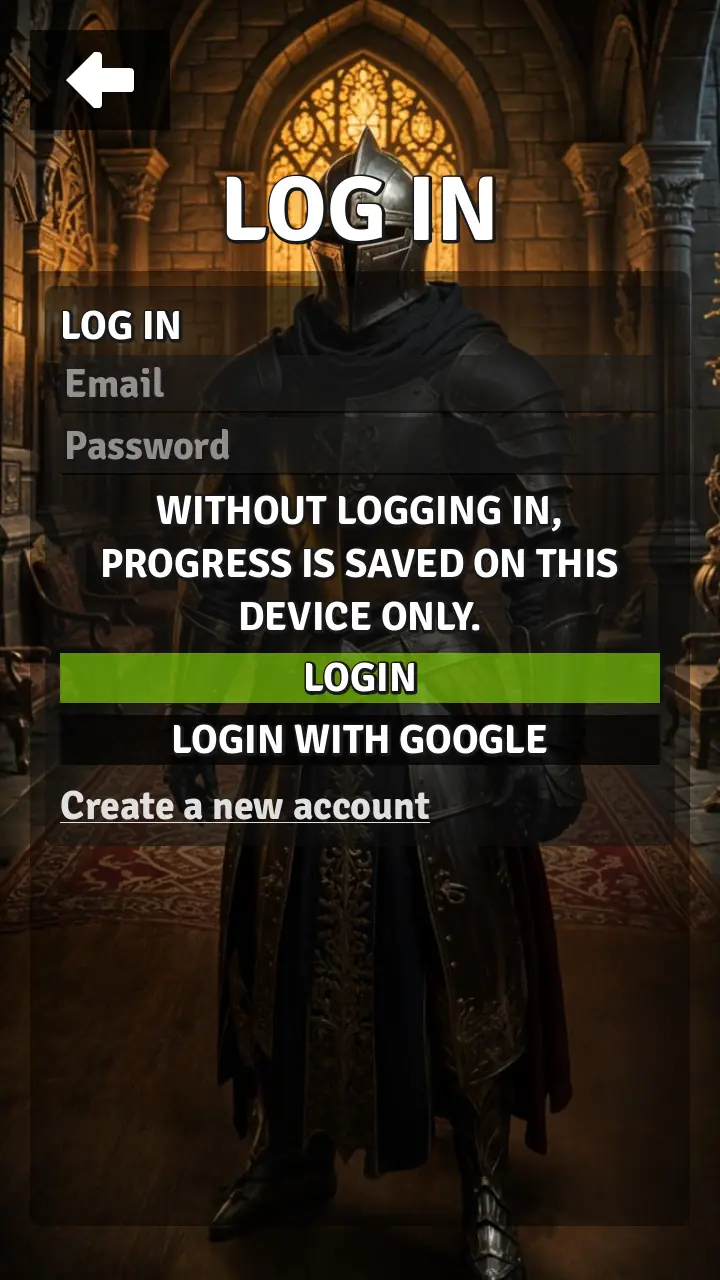
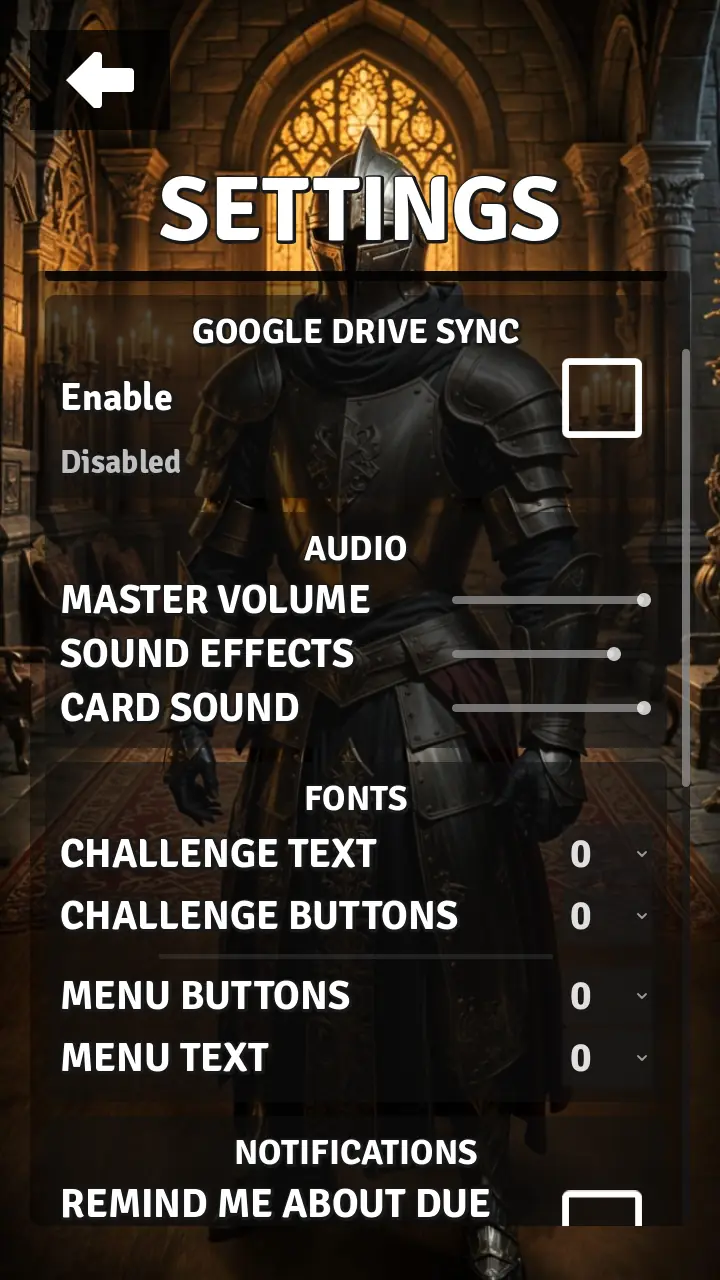
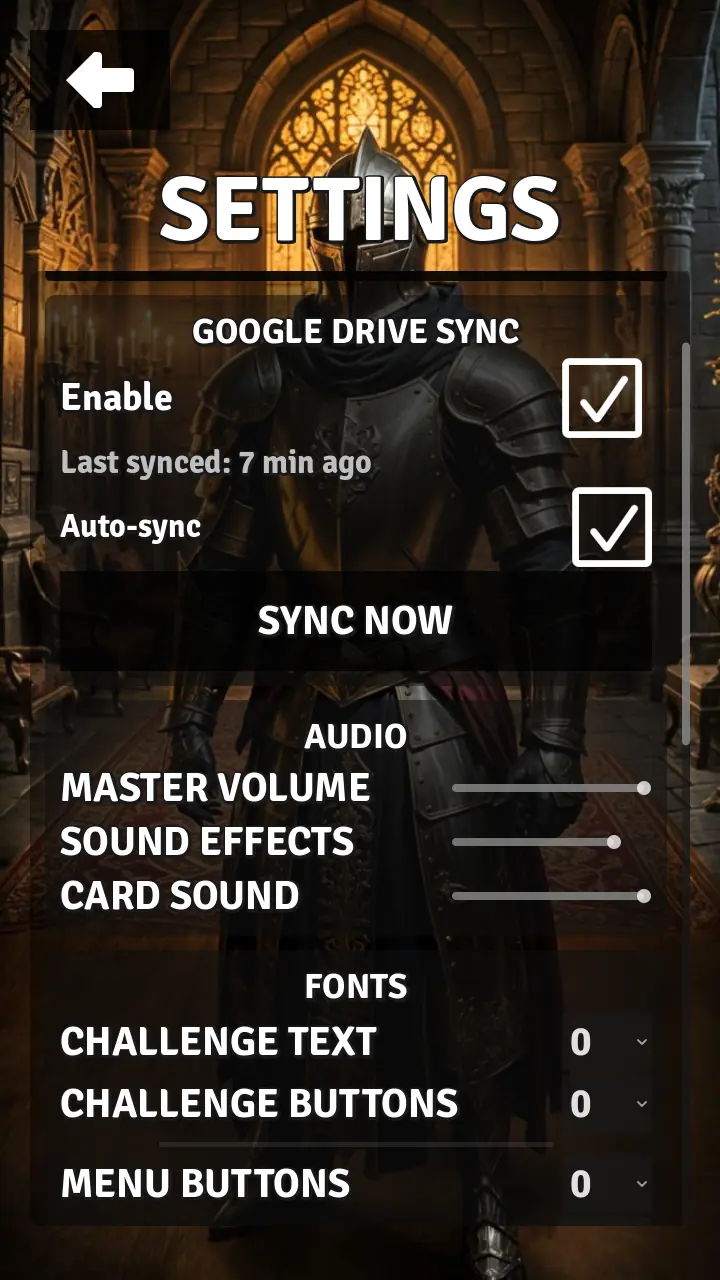
If you started the game for the first time and saw the welcome wizard, I already have an account — sync my decks does steps 1 and 2 for you, and the wizard stops greeting you on later launches.
2. Export the deck from Anki
Cathartic reads Anki's own package format, so nothing needs converting.
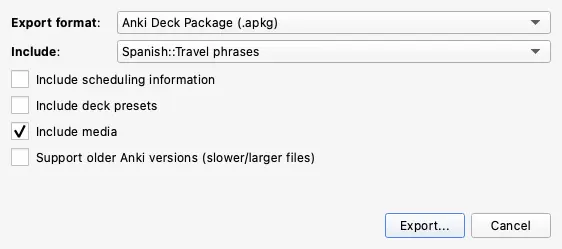
- In Anki, click the gear next to your deck (or use File → Export).
- Choose Anki Deck Package (*.apkg) as the format.
- Tick Include media if your cards have images or audio, and keep Include scheduling information ticked so your existing progress comes along.
- Save the file somewhere you can find it from your browser.
Building a deck from scratch
New to Anki? Create a deck and add notes — each note has a front (question) and a back (answer):
| Front (Question) | Back (Answer) |
|---|---|
| hola | hello |
| gracias | thank you |
| por favor | please |
| ¿cómo estás? | how are you? |
| buenos días | good morning |
💡 Tip
Already have your cards in a spreadsheet (Google Sheets, Excel, LibreOffice Calc)? Export
them as a tab- or comma-separated file and use Anki's File → Import to pull
them into a deck — then export the deck as .apkg.
A few things that make a deck play well:
- Keep cards concise — one concept per card.
- Use consistent formatting throughout the deck.
- Start with smaller decks (100–300 cards) for the best gameplay experience.
- Include context clues if the answer could be ambiguous.
- Review and edit the deck after playing a few rounds.
3. Import the package in the Study app
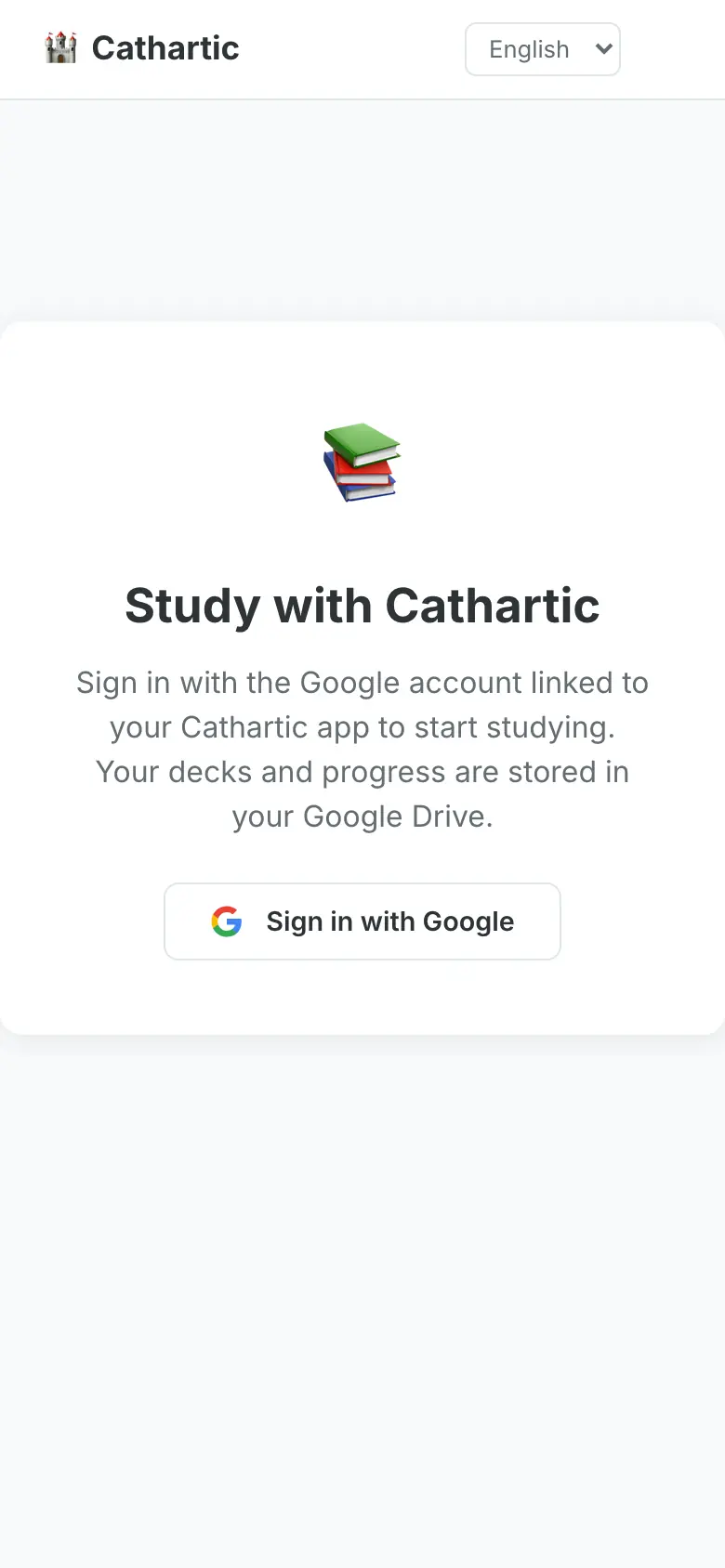
- Open the Study app in your browser and click Sign in with Google. Use the same Google account as in the game — a different account means a different Drive, and the game will never see the deck.
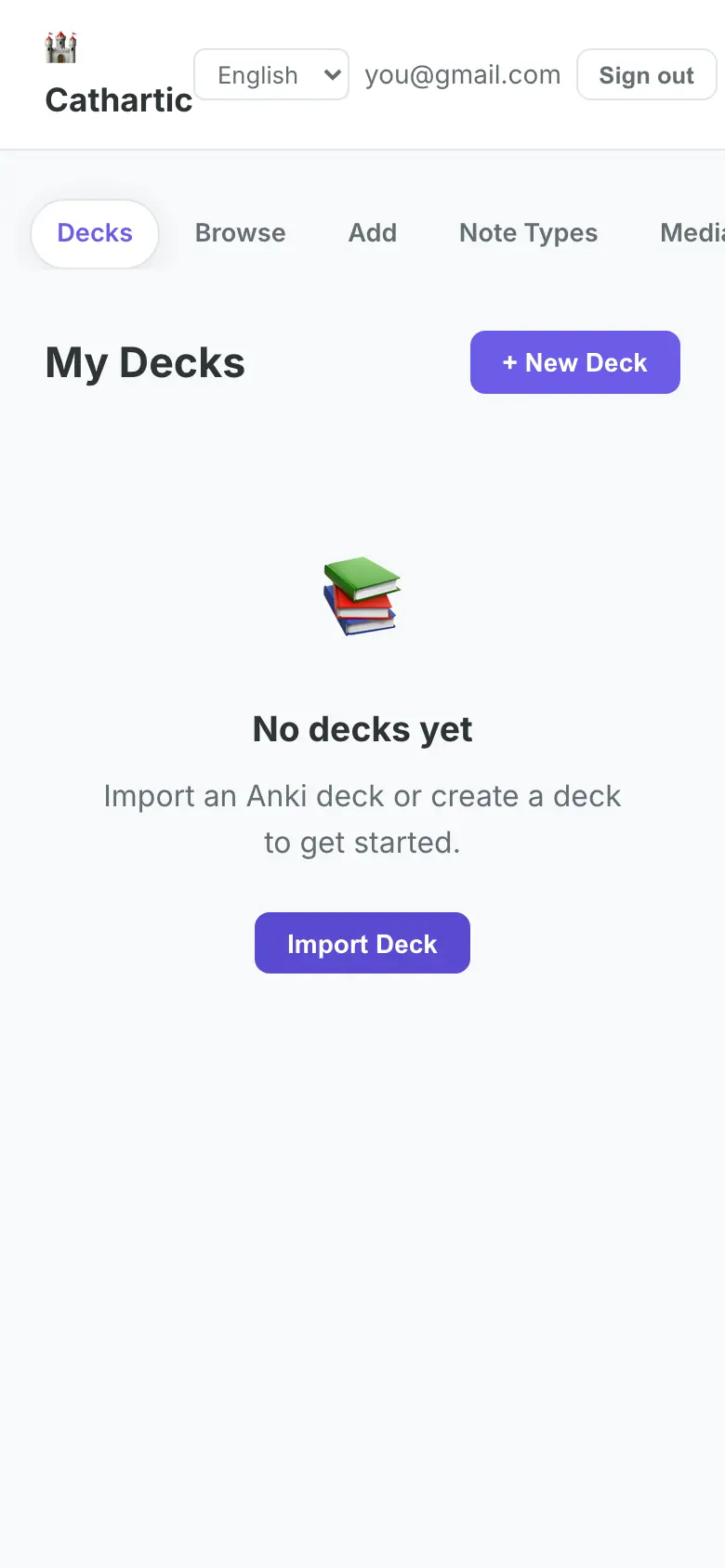
- The Decks page is empty on a fresh account. Open Import in the navigation.
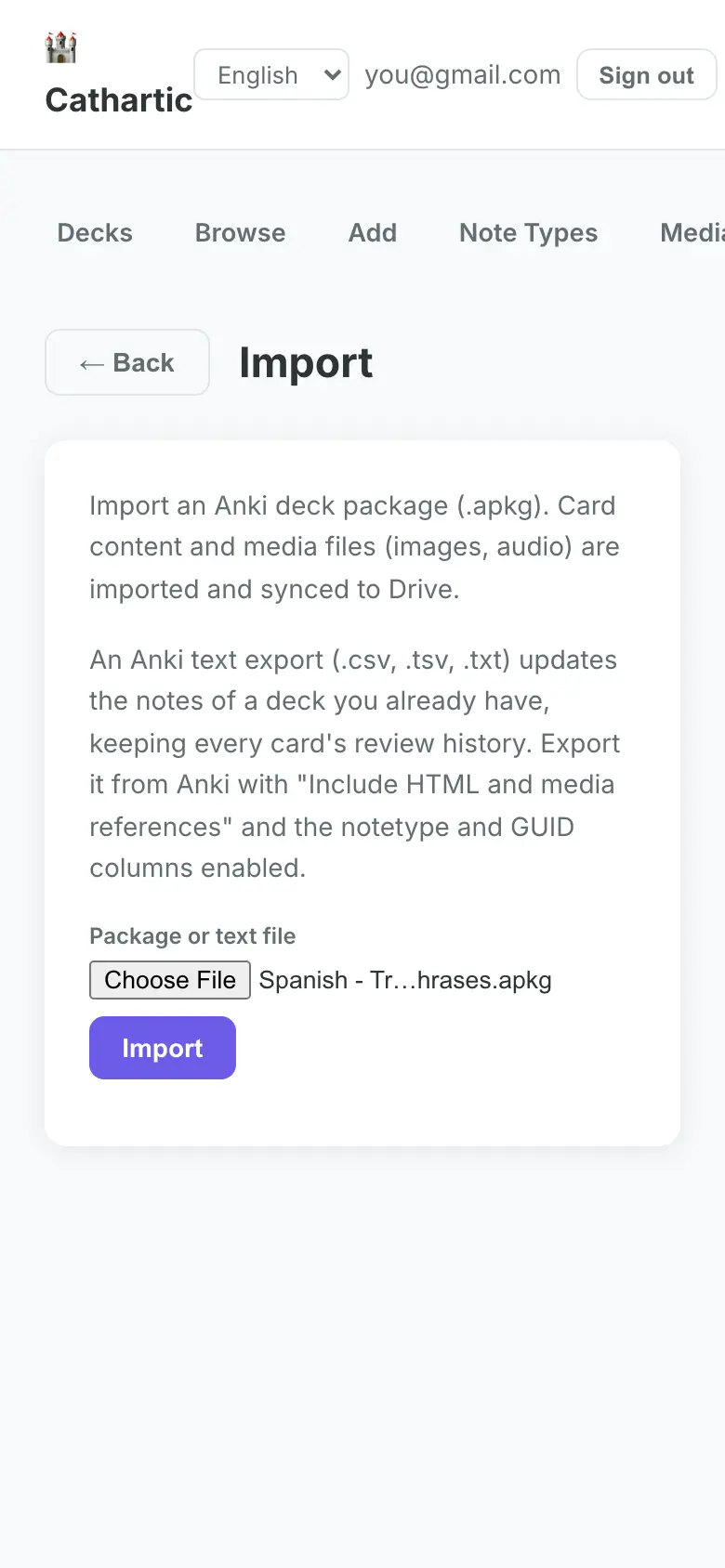
- Under Package or text file, choose the
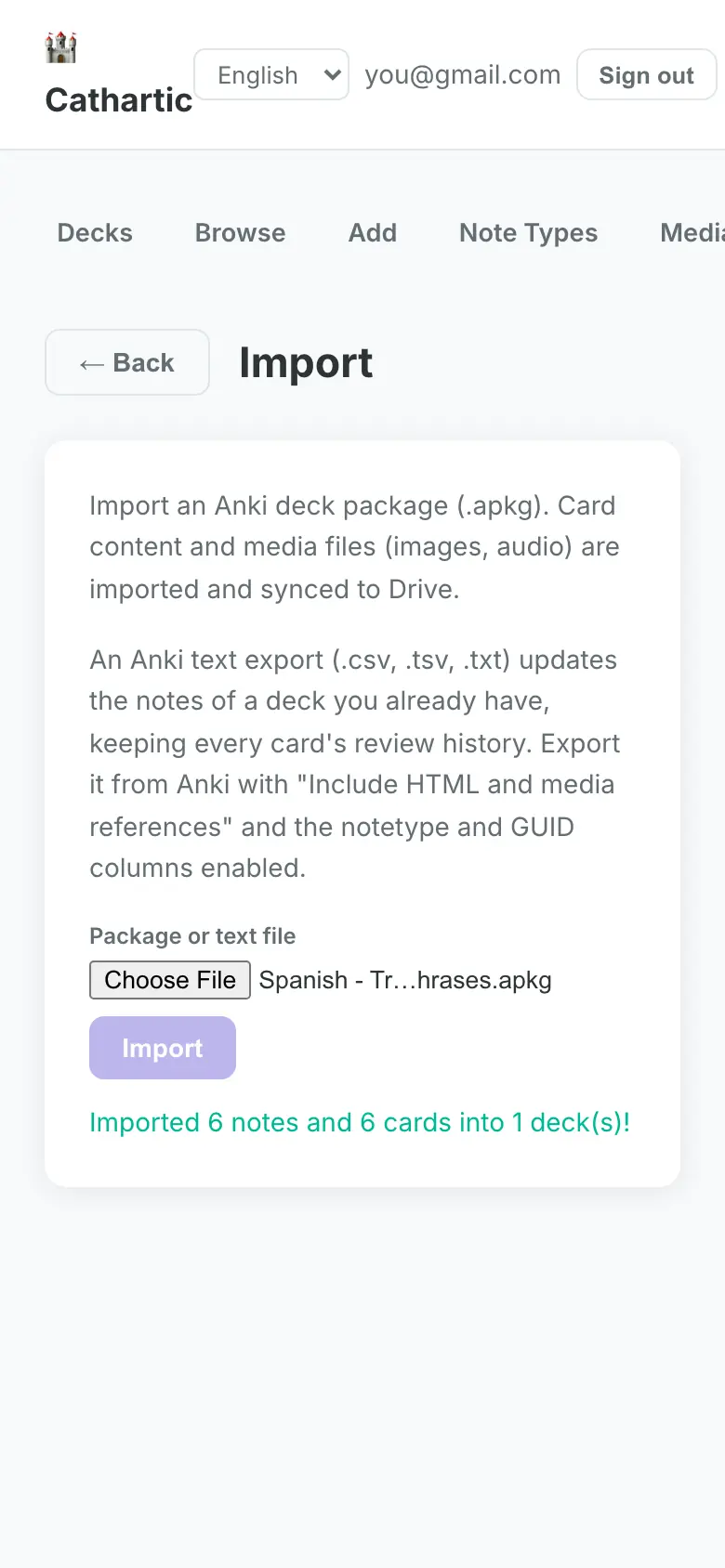
.apkgyou exported, then click Import. - Wait for the confirmation: Imported N notes and M cards into K deck(s). Media is uploaded to Drive in the background.
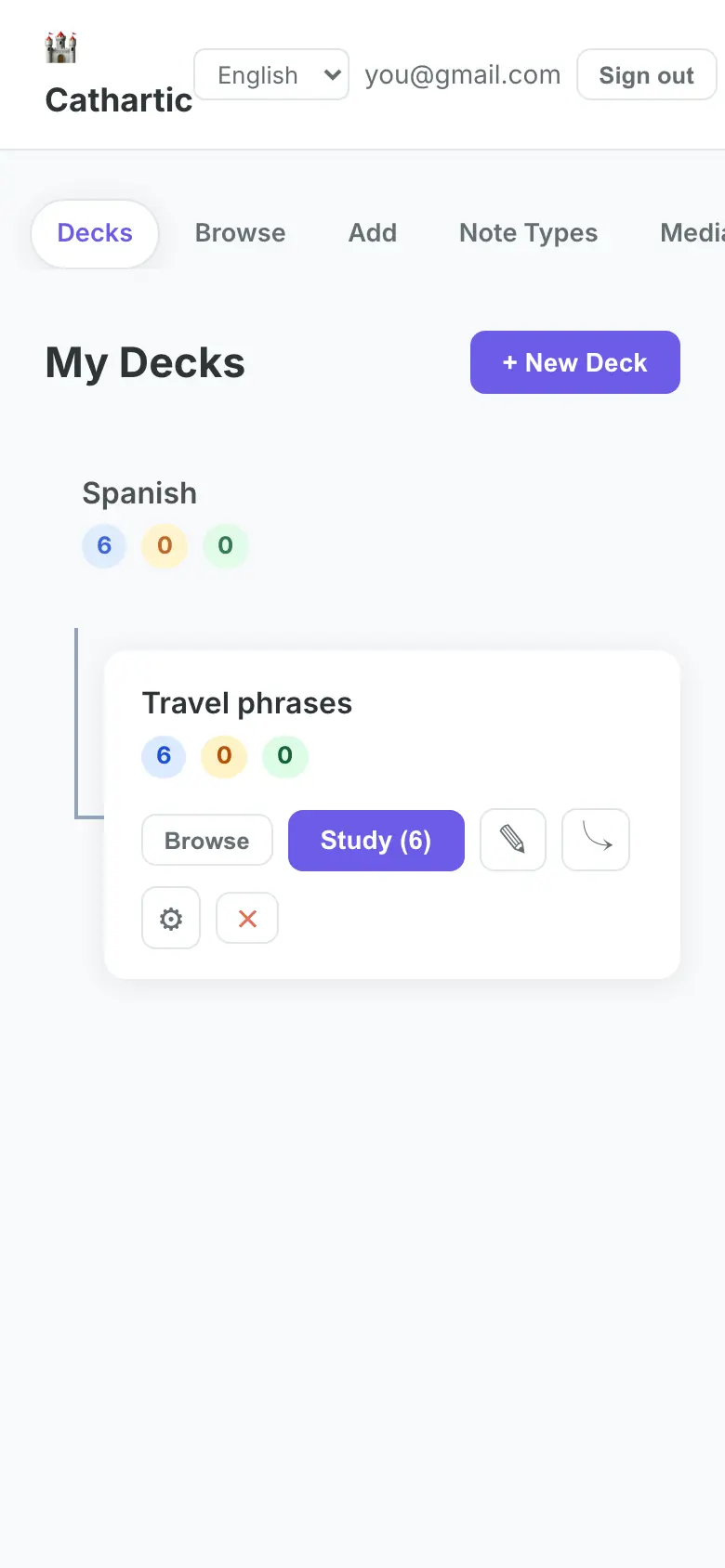
- Back on Decks, your deck is listed with its card counts.
4. Back in the game: sync and play
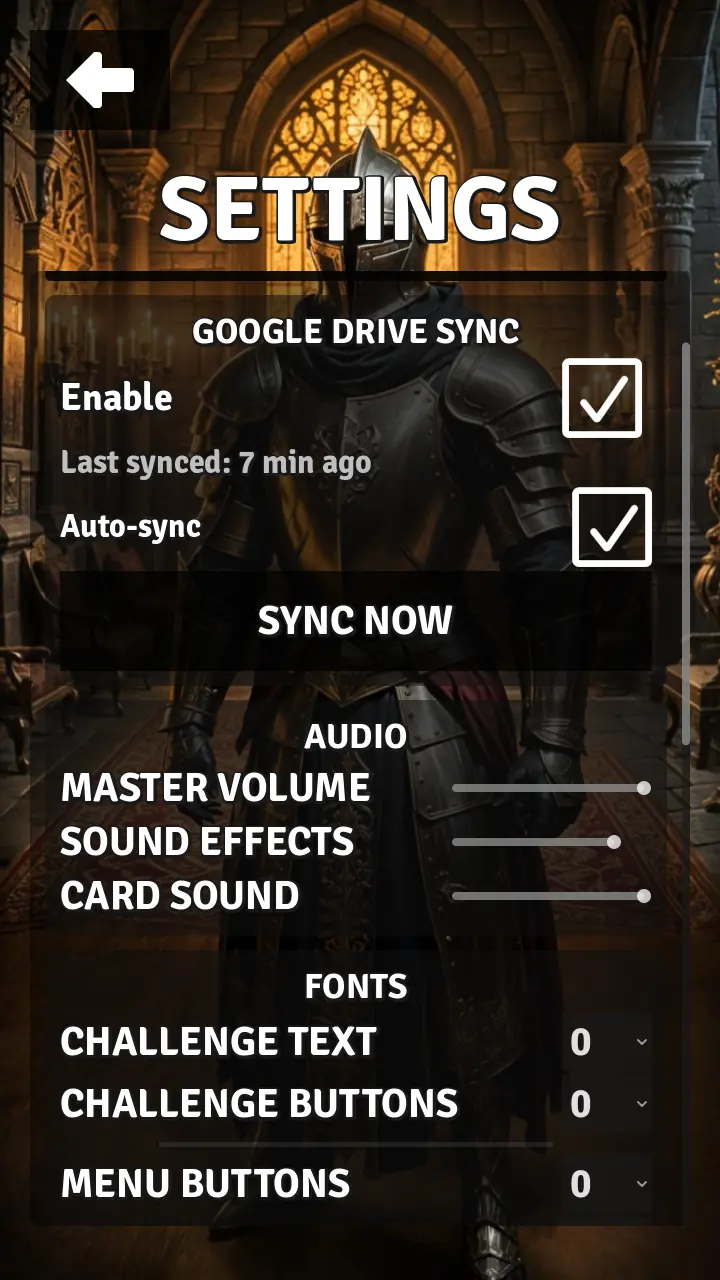
- Open Settings → Google Drive Sync and tap Sync Now (or wait for Auto-sync).
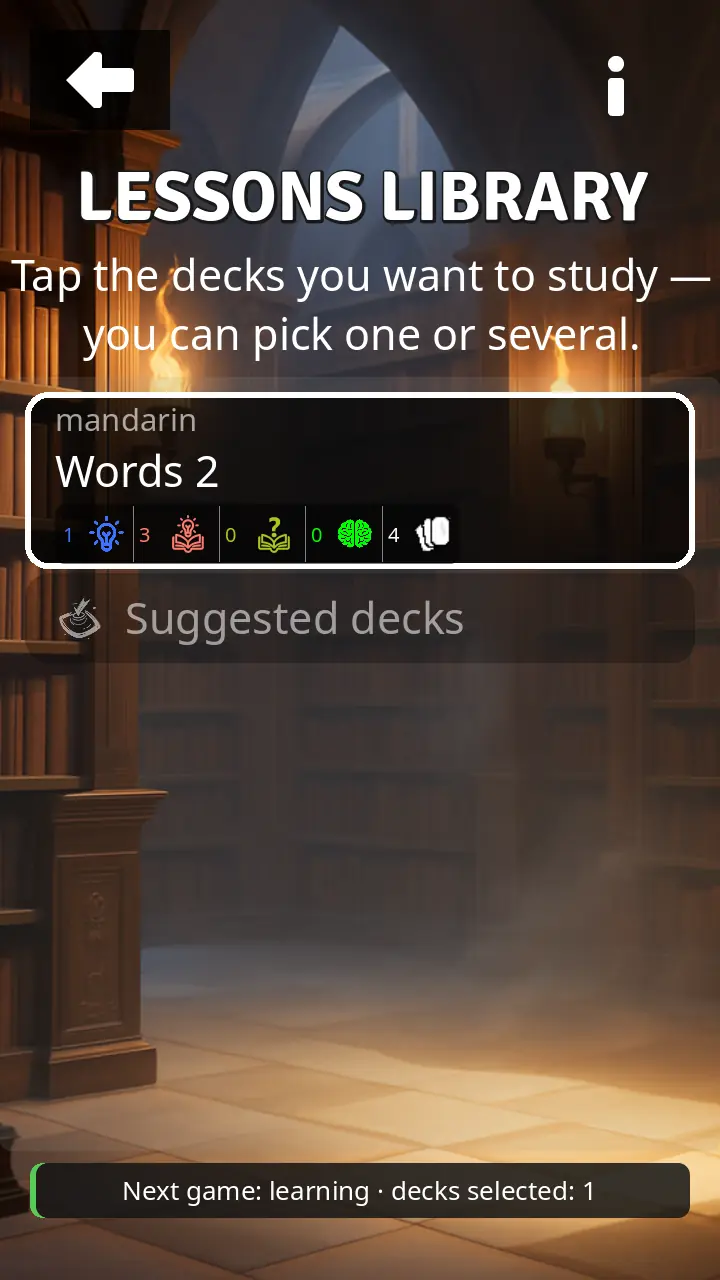
- Open the Lessons library. The new deck is there; tap it to turn it on.
- Start a game. The flashcards you answer now come from your deck.
5. Update the cards without losing progress
Fixed a typo, added a picture, or reworded a hundred backs? You don't have to start over. Anki's text export updates the notes in place; every card keeps its review history.
- In Anki: File → Export, format Notes in Plain Text (*.txt). Tick Include HTML
and media references, Include unique identifier and Include notetype. (New notes
with new media still need an
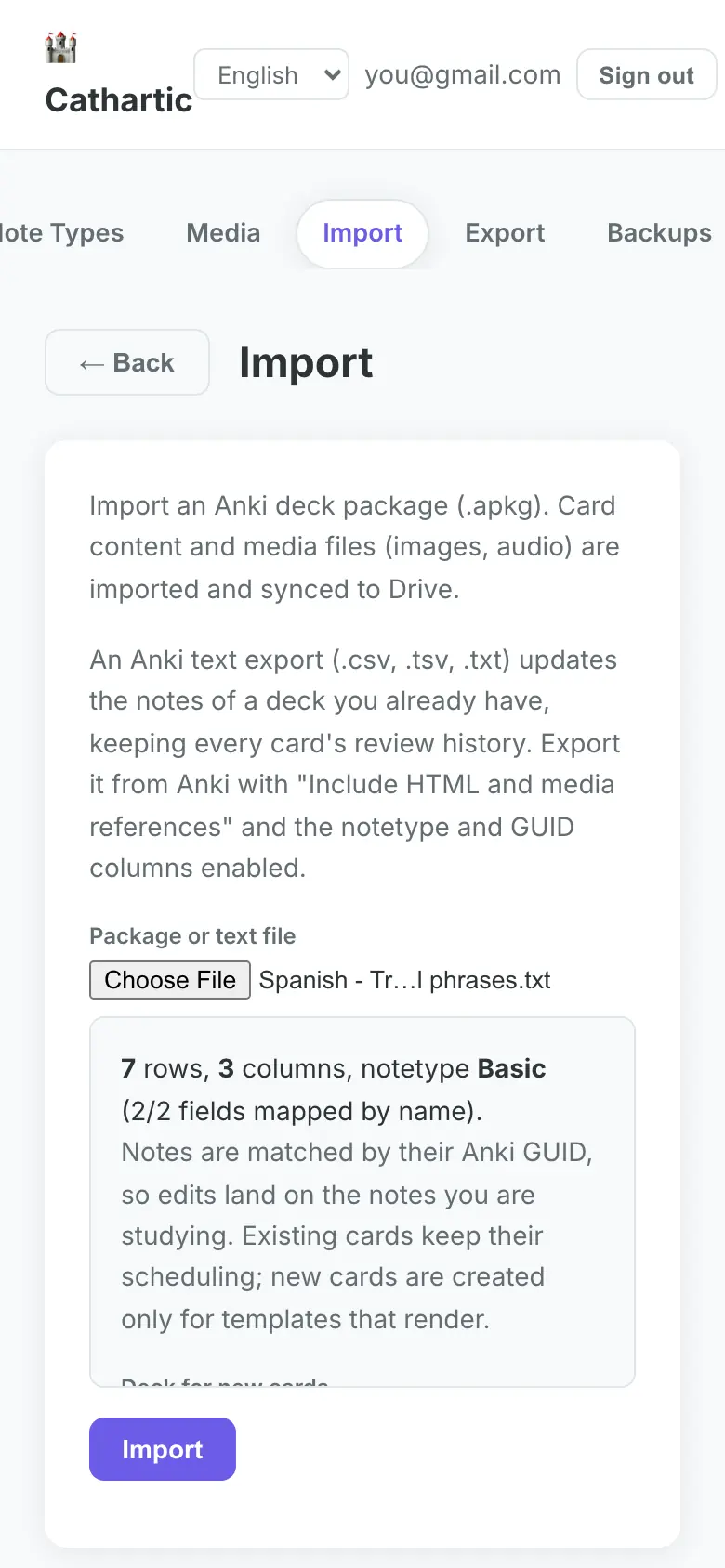
.apkgonce, so their files come along.) - In the Study app, open Import and choose the
.txtfile. - The preview tells you how many notes will be updated, how many are new, and which deck the new ones go to. Click Import.
Existing cards keep their scheduling; only cards of new notes are created.
6. Get your progress back into Anki
Everything you review in Cathartic is stored the way Anki stores it, so it can be merged into your Anki collection. Anki's own importer skips cards it already has, which is why a small add-on does the merging.
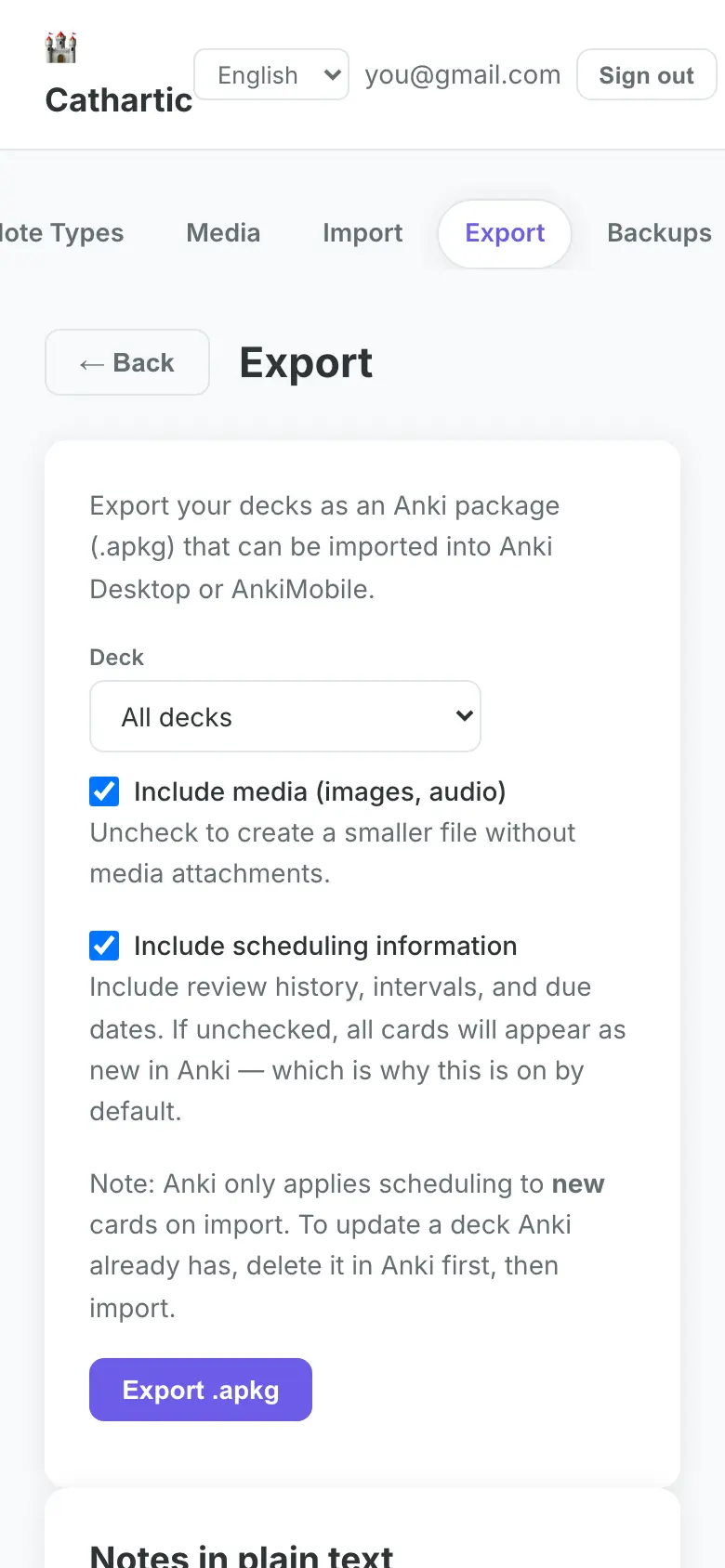
- In the Study app, open Export, choose the deck and click Export .apkg.
- Install the add-on once: download sched_merge.ankiaddon, then in Anki choose Tools → Add-ons → Install from file… and pick it. Restart Anki. It needs Anki 25.09 or newer.
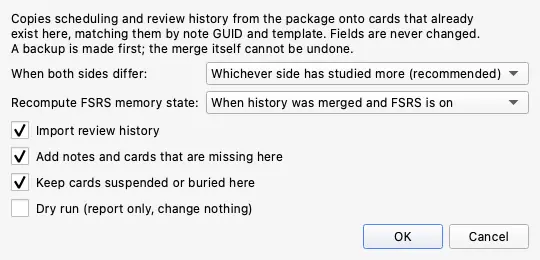
- Tools → Import scheduling from .apkg…, pick the exported file. Leave Dry run on for the first pass — it reports every number and writes nothing.
- Run it again with Dry run off. A backup of your collection is taken first.
Cards are matched on note and card template, never on ids, so it does not matter what either
side calls the deck. When both sides studied the same card, the default policy
(more_reviews) keeps the side with the longer review history — the same rule the
Cathartic apps use between two devices.
Without the add-on
Anki can import the same .apkg on its own, with one catch: its importer keeps the
scheduling it already has and only applies yours to cards it does not have yet. For a deck Anki
already knows, that means your Cathartic reviews are ignored.
To use plain Anki anyway:
- Export the deck from the Study app as above, with Include scheduling information ticked.
- In Anki, delete the deck you are replacing, and tick Delete its cards as well. Your notes live in that deck's cards, so this removes the Anki-side review history for them. Export a backup first, or use File → Create Backup, because this cannot be undone from the importer.
- File → Import, pick the
.apkg, and the cards come back with the scheduling they had in Cathartic.
The add-on exists so you do not have to do step 2. Deleting and re-importing also loses anything Anki knew and Cathartic did not, such as reviews you did on another Anki device that never reached the game, so prefer the add-on when the deck matters.
7. Backups and troubleshooting
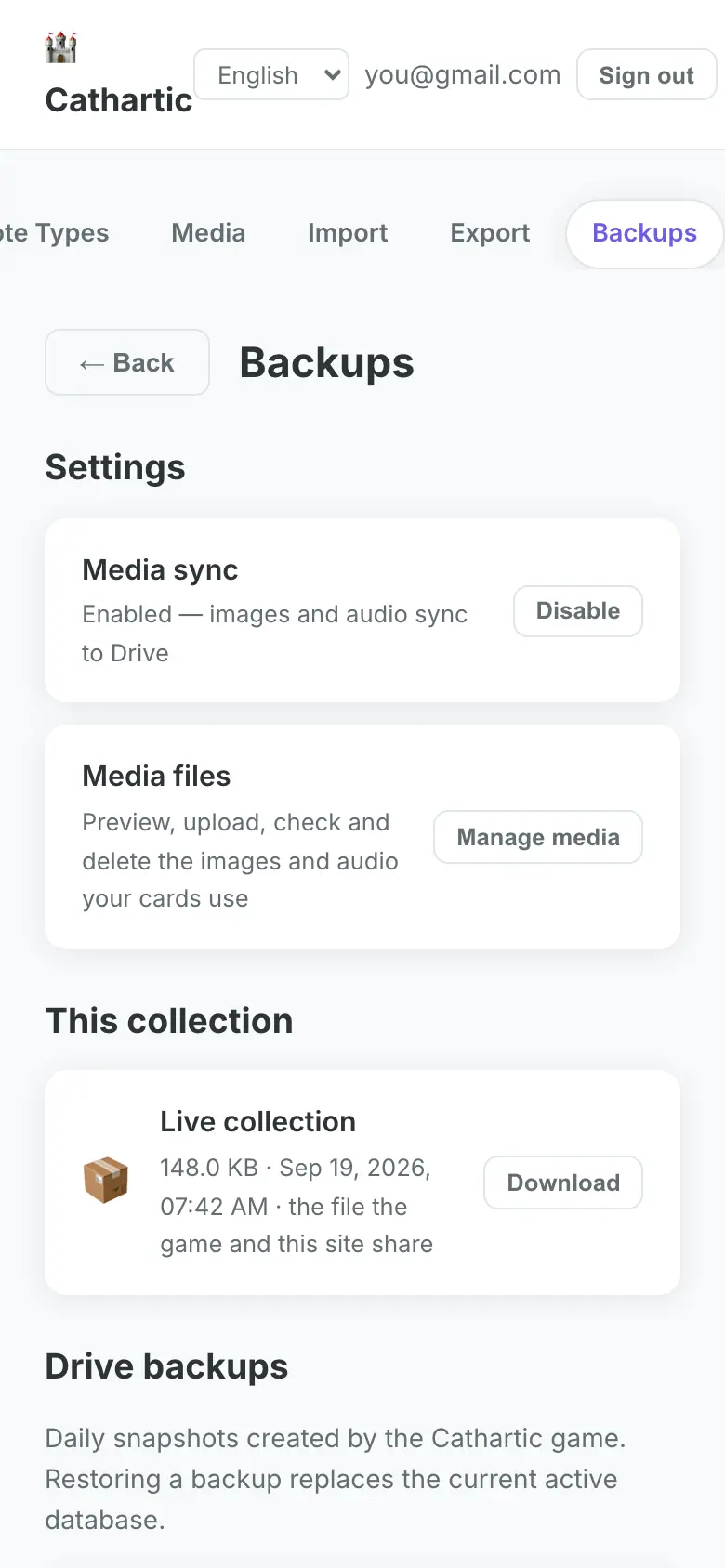
The Backups page of the Study app shows the sync state of your collection and its media: download a copy of the collection, restore an earlier Drive backup, or turn media sync off if you are short on Drive space.
The game doesn't show my deck. Almost always a different Google account on one side. Check the address shown in the game's login screen against the one in the Study app, then Sync Now.
Where is the data in my Drive? It is hidden app data: you won't see it among your files, and only Cathartic can read it. Disconnecting the app in your Google account settings removes it.
Import says the file has no card layout of its own. You imported a text export for a deck
the Study app has never seen. Import the deck as .apkg once first, then the text
file.